Managing cloud costs doesn’t have to feel like navigating a maze. With the Azure Cost Calculator, you gain clarity, control, and confidence in every deployment decision—turning guesswork into precision.




What Is the Azure Cost Calculator and Why It Matters
The Azure Cost Calculator is a free, web-based tool provided by Microsoft to help businesses estimate the cost of using Azure cloud services before making any financial commitment. Whether you’re planning a small development environment or a full-scale enterprise migration, this tool gives you a transparent, itemized forecast of your potential monthly or annual expenses.
Unlike generic pricing estimators, the Azure Cost Calculator is tightly integrated with Azure’s actual service catalog, ensuring that the prices reflect real-time rates across regions, service tiers, and usage models. This makes it an essential first step for any organization serious about cloud cost governance.
How the Azure Cost Calculator Works
At its core, the Azure Cost Calculator operates on a simple principle: you select the services you plan to use, configure them based on your expected usage, and the tool calculates a projected cost. It supports a wide range of Azure offerings, including virtual machines, storage, networking, databases, AI/ML services, and more.
For example, if you’re planning to deploy a virtual machine in the East US region with 8 vCPUs, 32 GB RAM, and 500 GB of SSD storage, you can configure those specs directly in the calculator. You can also define usage patterns—such as whether the VM will run 24/7 or only during business hours—to get a more accurate estimate.
The tool dynamically updates the total cost as you add or modify services, allowing you to experiment with different configurations in real time. This interactive experience helps teams compare scenarios and make informed decisions before any money is spent.
Key Features That Set It Apart
One of the standout features of the Azure Cost Calculator is its ability to export estimates into detailed PDF reports or shareable links. This is particularly useful for IT managers who need to present cost projections to finance teams or stakeholders. The report includes a breakdown of each service, its configuration, hourly and monthly rates, and even tax estimates where applicable.
Another powerful feature is the integration with Azure Pricing APIs. This allows developers and DevOps teams to automate cost estimation within CI/CD pipelines or internal tools. By embedding cost intelligence into the development lifecycle, organizations can enforce cost-aware architecture from the start.
Additionally, the calculator supports multiple currencies and regions, making it a global tool for multinational companies. You can compare the cost of running the same workload in different Azure regions—such as West Europe versus Southeast Asia—to identify the most cost-effective location for your deployment.
“The Azure Cost Calculator isn’t just about numbers—it’s about empowering teams to make smarter, data-driven decisions before they commit to infrastructure.” — Microsoft Azure Documentation
Why Every Business Needs to Use the Azure Cost Calculator
In today’s cloud-first world, unexpected bills are one of the biggest risks organizations face. Without proper planning, a simple proof-of-concept can spiral into a six-figure monthly expense. The Azure Cost Calculator acts as a financial safety net, helping businesses avoid costly surprises.
Startups, enterprises, and even government agencies use this tool to align technical plans with budgetary constraints. It bridges the gap between engineering and finance, ensuring that innovation doesn’t come at the cost of fiscal responsibility.
Preventing Cost Overruns Before They Happen
One of the most common pitfalls in cloud adoption is underestimating long-term costs. A team might spin up a few virtual machines for testing, only to forget about them months later. These “zombie resources” can accumulate significant charges over time.
By using the Azure Cost Calculator early in the planning phase, teams can simulate various usage scenarios and identify potential cost traps. For instance, you might discover that using reserved instances for predictable workloads can save up to 72% compared to pay-as-you-go pricing.
The tool also highlights services that are often overlooked in cost models, such as data transfer fees, backup storage, or monitoring solutions. These seemingly minor line items can add up quickly, especially in large-scale deployments.
Aligning Technical Decisions with Financial Goals
Traditionally, technical teams focus on performance and scalability, while finance teams care about budgets and ROI. The Azure Cost Calculator creates a common language between these departments.
For example, a CTO might want to use the latest GPU-powered VMs for AI training, but the CFO needs to know the financial impact. With the calculator, they can explore different VM families, compare costs, and find a balance between performance and affordability.
This alignment leads to better governance, faster approvals, and more sustainable cloud strategies. It also supports chargeback and showback models, where departments are billed for the resources they consume, promoting accountability and efficiency.
Step-by-Step Guide to Using the Azure Cost Calculator
Using the Azure Cost Calculator is straightforward, but mastering it requires understanding its full capabilities. Let’s walk through the process from start to finish.
Step 1: Access the Tool and Start a New Estimate
Go to the official Azure Cost Calculator page. No login is required to start building an estimate, which makes it accessible to anyone, even non-Azure customers.
Once on the page, click “Create a new estimate.” You’ll be taken to a clean workspace where you can begin adding services. The interface is intuitive, with a search bar at the top and categorized service groups on the left.
Step 2: Add and Configure Azure Services
Start by searching for the services you plan to use. For example, type “Virtual Machines” and select it from the list. A configuration panel will appear where you can choose the VM size, region, operating system, and usage duration.
You can also specify whether the VM will run continuously or part-time. The calculator automatically adjusts the cost based on your selection. For instance, a VM running 8 hours a day, 5 days a week, will cost significantly less than one running 24/7.
Repeat this process for other services like Blob Storage, Azure SQL Database, or Azure Kubernetes Service (AKS). As you add items, they appear in a summary panel on the right, showing individual and total costs.
Step 3: Refine, Compare, and Export Your Estimate
Once your initial estimate is built, you can refine it by adjusting configurations. Try switching from a premium SSD to a standard HDD for storage, or downgrading a VM size to see how it impacts the total.
The calculator allows you to save multiple versions of an estimate, which is useful for comparing different architectural approaches. For example, you might create one estimate for a monolithic application and another for a microservices-based design.
When you’re satisfied, click “Export” to download a PDF report or generate a shareable link. This is ideal for collaboration with team members or inclusion in project proposals.
Advanced Tips for Maximizing the Azure Cost Calculator
While the basic functionality is easy to grasp, there are several advanced techniques that can help you get the most out of the Azure Cost Calculator.
Leverage Reserved Instances and Savings Plans
The calculator includes options to model savings from Azure Reserved VM Instances and Azure Savings Plans. These are commitment-based pricing models that offer significant discounts—up to 72%—for workloads with predictable usage.
When configuring a virtual machine, you’ll see a toggle for “Reservation.” Enable it, and the tool will show your potential savings over 1-year or 3-year terms. This helps you evaluate whether committing to a reservation makes financial sense for your use case.
Similarly, for services like Azure Functions or Azure Cosmos DB, you can explore the cost impact of switching to a serverless model with consumption-based pricing versus a provisioned capacity model.
Model Hybrid and Multi-Cloud Scenarios
Although the Azure Cost Calculator is designed for Azure services, you can use it to model hybrid cloud environments. For example, if you’re running some workloads on-premises and others in Azure, you can estimate only the Azure portion and combine it with your internal data center costs.
You can also use the calculator alongside other cloud provider tools—like the AWS Pricing Calculator or Google Cloud Pricing Calculator—to perform cross-platform comparisons and make informed vendor decisions.
Some organizations even build internal dashboards that pull data from multiple calculators to provide a unified view of cloud economics.
Use Tags for Cost Allocation and Governance
The Azure Cost Calculator allows you to apply tags to your estimate, such as “Department: Marketing” or “Project: Customer Portal.” While these tags don’t enforce policies in Azure itself, they help organize costs during the planning phase.
When you later deploy resources in Azure, you can apply the same tagging strategy to enable cost tracking in Azure Cost Management + Billing. This creates a seamless flow from estimation to actual cost reporting.
Tags are especially useful for large organizations with multiple teams sharing a subscription. They enable granular cost analysis and support chargeback models where departments are billed for their usage.
Common Mistakes to Avoid When Using the Azure Cost Calculator
Even experienced users can make errors that lead to inaccurate estimates. Being aware of these pitfalls can help you generate more reliable projections.
Ignoring Egress and Data Transfer Costs
One of the most common oversights is forgetting about data egress fees. While inbound data transfer is free on Azure, outbound data (especially to the internet) can incur charges.
For example, if your application serves large video files to global users, the egress cost could exceed the cost of the virtual machines themselves. The Azure Cost Calculator includes a “Networking” section where you can estimate these costs by specifying the amount of data transferred per month.
Always review the networking component of your estimate, especially for content delivery, backup, or disaster recovery scenarios.
Overlooking Hidden Services
Some services are easy to forget because they’re not part of the core architecture. Examples include Azure Monitor, Log Analytics, Backup, and Site Recovery.
While these services are critical for security, compliance, and reliability, they add to the total cost. The calculator allows you to add them explicitly, so be sure to include monitoring and backup solutions in your estimate.
For instance, enabling Azure Backup for a VM adds a small but recurring monthly fee. Over time, this can represent a meaningful portion of your budget, especially at scale.
Using Default Configurations Without Optimization
The calculator often defaults to the latest or most powerful service tier, which may not be necessary for your workload. For example, selecting a “Premium” storage account when “Standard” would suffice can double your storage costs.
Always question whether you need high-performance tiers. Can your application tolerate higher latency? Is eventual consistency acceptable for your database? These decisions have direct financial implications.
Use the calculator to test different configurations and find the optimal balance between performance and cost.
Integrating the Azure Cost Calculator with Azure Cost Management
The Azure Cost Calculator is a planning tool, but once you deploy resources, you need ongoing cost monitoring. This is where Azure Cost Management + Billing comes in.
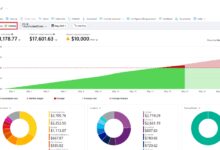
This service provides real-time cost tracking, budget alerts, and detailed reports on actual usage. By comparing your original estimate from the calculator with real-world spending, you can identify variances and adjust your architecture or usage patterns accordingly.
From Estimation to Real-Time Monitoring
After deployment, link your Azure subscription to Cost Management. You can view daily, weekly, or monthly spending trends, filter by resource group, tag, or service, and set up budgets with alert thresholds.
For example, if your calculator estimated $5,000/month for a workload but actual spending is $7,000, you can drill down to see which services are over budget. Maybe a test environment was left running, or a database was scaled up unnecessarily.
This feedback loop closes the gap between planning and execution, enabling continuous cost optimization.
Using Tags for Accurate Cost Attribution
As mentioned earlier, tagging is crucial for cost tracking. In Cost Management, you can generate reports that show spending by department, project, or environment (e.g., dev, staging, prod).
This level of granularity helps identify inefficiencies and supports accountability. For instance, if the marketing team’s sandbox environment is consuming more than expected, you can investigate and take corrective action.
The key is consistency: use the same tag schema in both the Azure Cost Calculator and your Azure resources to ensure accurate attribution.
Real-World Use Cases of the Azure Cost Calculator
The true value of the Azure Cost Calculator becomes clear when you see how organizations use it in practice. Here are three real-world scenarios that demonstrate its impact.
Case Study: Migrating an On-Premises Data Center
A mid-sized manufacturing company decided to migrate its on-premises data center to Azure. Before committing, they used the Azure Cost Calculator to model the entire workload, including 50 virtual machines, 20 TB of file storage, and a SQL Server database.
They experimented with different VM sizes, storage types, and backup strategies. By applying reserved instance pricing, they reduced their estimated monthly cost by 40%. The final report was presented to the board, which approved the migration based on the clear financial model.
After migration, their actual costs were within 5% of the estimate, thanks to careful planning and tagging.
Case Study: Launching a Global Web Application
A startup building a global e-commerce platform used the calculator to estimate costs for a multi-region deployment. They included Azure App Service, Azure SQL Database, Azure CDN, and Azure Front Door for global load balancing.
By comparing costs across regions, they chose to host primary services in East US and failover in West Europe. They also modeled traffic spikes during sales events, ensuring their budget accounted for temporary scaling.
The calculator helped them secure funding by showing investors a realistic cost structure, avoiding the perception of financial recklessness.
Case Study: Optimizing a DevOps Pipeline
A software development team wanted to optimize their CI/CD pipeline on Azure DevOps. They used the calculator to estimate costs for hosted agents, pipeline minutes, and artifact storage.
They discovered that switching from Microsoft-hosted agents to self-hosted agents could save over $2,000/month. They also identified unused pipeline runs that were consuming minutes unnecessarily.
By acting on these insights, they reduced their DevOps costs by 60% without sacrificing performance.
What is the Azure Cost Calculator?
The Azure Cost Calculator is a free online tool from Microsoft that helps users estimate the cost of Azure cloud services before deployment. It allows you to configure virtual machines, storage, networking, and other services to get a detailed cost forecast.
Is the Azure Cost Calculator accurate?
Yes, the Azure Cost Calculator uses real-time pricing data from Azure and is highly accurate for planning purposes. However, actual costs may vary slightly due to usage fluctuations, taxes, or unanticipated services like data egress.
Can I save and share my estimates?
Yes, you can save your estimates in the browser or export them as PDF reports. You can also generate a shareable link to collaborate with team members or stakeholders.
Does the calculator include reserved instance discounts?
Yes, the Azure Cost Calculator includes options to model savings from Azure Reserved VM Instances and Azure Savings Plans, showing potential discounts of up to 72% for committed usage.
How is the Azure Cost Calculator different from Azure Total Cost of Ownership (TCO) Tool?
The Azure Cost Calculator estimates cloud service costs, while the Azure TCO Tool compares the cost of running workloads on-premises versus migrating to Azure, including hardware, maintenance, and operational expenses.
Mastering the Azure Cost Calculator is a critical step toward responsible cloud adoption. It transforms cost estimation from a guessing game into a strategic advantage, empowering teams to innovate within budget. By combining accurate forecasting, scenario modeling, and integration with cost management tools, organizations can achieve both technical excellence and financial discipline in the cloud.
Recommended for you 👇
Further Reading: