Thinking about upgrading your identity management? Azure for Active Directory isn’t just a trend—it’s a game-changer. Seamlessly blending cloud flexibility with enterprise-grade security, it’s redefining how organizations manage access, protect data, and scale operations globally.



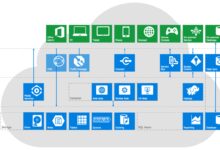


Understanding Azure for Active Directory: The Modern Identity Backbone

Azure for Active Directory, often referred to as Azure AD, is Microsoft’s cloud-based identity and access management service. It’s not merely a cloud version of the traditional on-premises Active Directory (AD); it’s a reimagined platform built for the modern, hybrid, and cloud-first world. With digital transformation accelerating, organizations need a solution that supports remote work, multi-device access, and secure authentication across thousands of cloud applications.
What Is Azure Active Directory?
Azure Active Directory is Microsoft’s identity-as-a-service (IDaaS) solution that provides single sign-on (SSO), multi-factor authentication (MFA), and identity protection for cloud and on-premises applications. Unlike traditional Active Directory, which relies on domain controllers and LDAP protocols, Azure AD is built on REST APIs, OAuth, OpenID Connect, and SAML, making it inherently web-native and scalable.
It serves as the backbone for Microsoft 365, Dynamics 365, and thousands of third-party SaaS applications. Users can log in once and access all permitted services without re-entering credentials—this is the power of centralized identity management in the cloud.
How Azure for Active Directory Differs from On-Premises AD
While both systems manage user identities, their architectures and use cases differ significantly. Traditional Active Directory is designed for Windows-centric, on-premises environments where domain-joined machines and Group Policy Objects (GPOs) dominate. Azure AD, on the other hand, is optimized for cloud applications, mobile devices, and hybrid scenarios.
- Authentication Protocols: On-prem AD uses Kerberos and NTLM; Azure AD uses modern standards like OAuth 2.0 and OpenID Connect.
- Device Management: On-prem AD relies on domain joining; Azure AD supports cloud-only joining, hybrid joining, and Azure AD Join for Windows 10/11 devices.
- Scalability: Azure AD automatically scales to millions of users, while on-prem AD requires manual infrastructure planning.
- Global Reach: Azure AD has built-in global redundancy and low-latency authentication endpoints worldwide.
For organizations transitioning to the cloud, understanding these differences is crucial. Azure for Active Directory doesn’t replace on-prem AD overnight but complements it through hybrid identity models.
“Azure AD is not just about moving identities to the cloud—it’s about enabling secure, seamless access to any app, from any device, anywhere.” — Microsoft Identity Division
Key Benefits of Using Azure for Active Directory
Organizations adopting Azure for Active Directory gain more than just a cloud directory—they unlock strategic advantages in security, productivity, and operational efficiency. Whether you’re a small business or a global enterprise, the benefits are tangible and measurable.
Enhanced Security and Identity Protection
Security is the crown jewel of Azure for Active Directory. With cyber threats evolving rapidly, relying solely on passwords is no longer sufficient. Azure AD introduces advanced security features like Conditional Access, Identity Protection, and Risk-Based Policies.
Conditional Access allows administrators to enforce policies based on user risk, device compliance, location, and application sensitivity. For example, you can block logins from high-risk countries or require MFA when accessing financial systems from unmanaged devices.
Azure AD Identity Protection uses machine learning to detect suspicious sign-in activities, such as anonymous IP addresses, unfamiliar locations, or impossible travel. When a risk is detected, it can automatically prompt for MFA, block access, or force a password reset.
According to Microsoft, organizations using Azure AD Identity Protection see a 99.9% reduction in identity-related breaches. This level of proactive defense is simply unmatched in traditional on-prem environments.
Seamless Single Sign-On (SSO) Experience
One of the most user-facing benefits of Azure for Active Directory is single sign-on. Users can access Microsoft 365, Salesforce, Workday, Dropbox, and over 2,600 pre-integrated SaaS apps with just one set of credentials.
SSO reduces password fatigue, minimizes helpdesk calls for password resets, and improves productivity. Employees spend less time logging in and more time being productive. For IT teams, managing app access becomes centralized—no more maintaining separate user accounts across dozens of platforms.
Moreover, Azure AD supports passwordless authentication methods like Windows Hello, FIDO2 security keys, and Microsoft Authenticator app. These options eliminate passwords altogether, reducing phishing risks and improving user experience.
Scalability and Global Availability
Traditional Active Directory requires careful planning for domain controllers, replication, and disaster recovery. Azure for Active Directory removes this complexity. As a globally distributed service, it automatically handles load balancing, failover, and high availability.
Whether you have 100 users or 100,000, Azure AD scales instantly. There’s no need to provision servers or worry about capacity. Microsoft guarantees 99.9% SLA, ensuring your identity system is always online.
This scalability is especially valuable for companies undergoing digital transformation, mergers, or rapid international expansion. With Azure for Active Directory, you can onboard new users in minutes, not days.
Core Components of Azure for Active Directory
To fully leverage Azure for Active Directory, it’s essential to understand its core components. These building blocks work together to deliver identity, access, and security services across your environment.
Azure AD Users and Groups
At the heart of Azure for Active Directory are users and groups. Users represent individuals—employees, partners, or customers—who need access to resources. Groups are collections of users used for assigning permissions and managing access at scale.
Azure AD supports several types of users:
- Cloud Users: Created and managed directly in Azure AD.
- Synchronized Users: From on-prem AD via Azure AD Connect.
- Guest Users: External collaborators invited via B2B collaboration.
Groups can be security groups, Microsoft 365 groups, or dynamic groups. Dynamic groups automatically add or remove members based on rules (e.g., department = Marketing), reducing administrative overhead.
Applications and Enterprise Apps
Azure for Active Directory acts as an identity provider for thousands of applications. The Azure portal includes an enterprise app gallery with pre-configured integrations.
When you add an app, you can configure SSO, assign users, and manage permissions. Azure AD supports four SSO modes:
- Password-based SSO: For apps without modern authentication support.
- SAML-based SSO: Common for enterprise SaaS apps.
- OpenID Connect/OAuth: For modern web and mobile apps.
- Integrated Windows Authentication: For on-prem apps published via Application Proxy.
You can also register custom applications in Azure AD, enabling secure authentication for in-house developed tools.
Conditional Access and Access Reviews
Conditional Access is one of the most powerful features in Azure for Active Directory. It allows you to create policies that enforce access controls based on specific conditions.
For example:
- Require MFA for all users accessing SharePoint Online from outside the corporate network.
- Block access to sensitive apps from non-compliant devices.
- Allow access only during business hours for certain roles.
These policies are built using a simple if-then logic: If a user meets certain conditions, then enforce specific access controls.
Complementing Conditional Access are Access Reviews, which help organizations maintain least-privilege access. Managers can periodically review who has access to which apps or groups and remove unnecessary permissions—critical for compliance and security audits.
Hybrid Identity: Bridging On-Premises and Cloud with Azure for Active Directory
Most organizations don’t operate in a purely cloud or on-premises world—they exist in a hybrid reality. Azure for Active Directory excels in this space by enabling seamless integration between on-premises Active Directory and the cloud.
What Is Hybrid Identity?
Hybrid identity refers to the synchronization of user identities from an on-premises directory (like Windows Server AD) to Azure AD. This allows users to have a single identity that works both on-premises and in the cloud, enabling consistent access and management.
The primary tool for achieving this is Azure AD Connect, a free synchronization service that links your on-prem AD with Azure AD. It can sync user accounts, groups, contacts, and passwords, ensuring that changes in one environment are reflected in the other.
Hybrid identity supports several authentication methods:
- Password Hash Synchronization (PHS): Syncs password hashes to Azure AD for cloud authentication.
- Pass-Through Authentication (PTA): Validates user credentials against on-prem AD in real time.
- Federation with AD FS: Uses on-premises federation servers for SSO.
Each method has its pros and cons, but PHS and PTA are generally recommended due to their simplicity and reliability.
Implementing Azure AD Connect
Setting up Azure AD Connect is straightforward but requires careful planning. The tool runs on a Windows Server within your on-prem network and communicates securely with Azure AD over HTTPS.
Key configuration steps include:
- Choosing the authentication method (PHS, PTA, or federation).
- Selecting which organizational units (OUs) and attributes to sync.
- Configuring filtering rules to exclude test or service accounts.
- Setting up optional features like device writeback or password writeback.
Once configured, Azure AD Connect runs in the background, synchronizing changes every 30 minutes. It also supports staging mode for testing and failover configurations for high availability.
Microsoft recommends monitoring sync health using the Azure AD Connect Health service, which provides alerts, performance metrics, and troubleshooting insights.
Benefits of Hybrid Identity Models
Adopting a hybrid identity model with Azure for Active Directory offers several strategic advantages:
- Unified Identity: Users have one identity across on-prem and cloud resources.
- Reduced Complexity: Eliminates the need for separate cloud-only accounts.
- Improved Security: Enables MFA and Conditional Access for on-prem apps via Application Proxy.
- Smooth Migration Path: Organizations can migrate workloads to the cloud at their own pace.
For example, a company can keep its file servers and ERP system on-premises while moving email and collaboration to Microsoft 365—all while using Azure AD for centralized access control.
Advanced Security Features in Azure for Active Directory
Security is not an afterthought in Azure for Active Directory—it’s built into every layer. From real-time threat detection to automated policy enforcement, Azure AD provides a robust security framework that adapts to modern threats.
Multi-Factor Authentication (MFA)
Azure for Active Directory includes built-in support for Multi-Factor Authentication, a critical defense against account compromise. MFA requires users to verify their identity using at least two of the following:
- Something they know (password)
- Something they have (phone, authenticator app, security key)
- Something they are (biometrics)
Azure MFA supports various methods:
- Phone call or SMS (less secure, not recommended for high-risk scenarios)
- Microsoft Authenticator app (push notifications or codes)
- FIDO2 security keys (passwordless, phishing-resistant)
- Hardware tokens
Administrators can enforce MFA globally or use Conditional Access policies to apply it selectively. For example, require MFA only when accessing financial systems or when logging in from a new device.
According to Microsoft, enabling MFA blocks over 99.9% of account compromise attacks. It’s one of the most effective security controls available.
Identity Protection and Risk Detection
Azure AD Identity Protection uses AI and machine learning to analyze billions of signals daily, identifying risky user behavior and sign-in patterns. It categorizes risks into two types:
- User Risk: Indicates a user account might be compromised (e.g., password leaked in a data breach).
- Sign-in Risk: Indicates a sign-in attempt might not be from the legitimate user (e.g., from a Tor browser or unfamiliar location).
Based on the risk level (low, medium, high), Identity Protection can trigger automated responses:
- Prompt for MFA
- Require password change
- Block access
These policies can be configured manually or enabled in “auto-remediation” mode for immediate threat response.
For example, if a user logs in from Nigeria at 3 AM and their last login was from Canada two hours earlier, Identity Protection flags this as “impossible travel” and can block the session.
Privileged Identity Management (PIM)
Not all users are equal—some have elevated privileges that can make them high-value targets. Azure AD Privileged Identity Management (PIM) helps secure these accounts through just-in-time (JIT) access and time-bound role activation.
With PIM, administrators don’t have permanent global admin rights. Instead, they request access when needed, which is then approved (manually or automatically) and granted for a limited time (e.g., 4 hours).
This reduces the attack surface by ensuring that privileged accounts are only active when necessary. All elevation requests and activities are logged for audit and compliance purposes.
PIM supports both Azure AD roles (like Global Administrator) and Azure resource roles (like Owner or Contributor), providing a unified privilege management experience.
Migration Strategies: Moving to Azure for Active Directory
Migrating to Azure for Active Directory is a strategic initiative that requires planning, testing, and stakeholder alignment. Whether you’re doing a full cloud migration or setting up a hybrid environment, the approach matters.
Assessment and Planning Phase
Before any technical work begins, conduct a thorough assessment of your current identity landscape. This includes:
- Inventory of on-prem AD domains, forests, and trusts
- User and group count
- Applications and their authentication methods
- Existing security policies and compliance requirements
Use tools like the Microsoft Secure Score and Azure AD Connect Health to evaluate your readiness. Define your goals: Are you aiming for SSO? Improved security? Cloud migration?
Create a migration roadmap with phases, timelines, and success metrics. Engage stakeholders from IT, security, and business units early in the process.
Execution: Setting Up Azure AD Connect
Once planning is complete, deploy Azure AD Connect in staging mode to test synchronization without affecting production. Choose the authentication method based on your needs:
- Password Hash Synchronization: Best for most organizations due to simplicity.
- Pass-Through Authentication: Ideal if you want real-time password validation against on-prem AD.
- Federation: Required only if you have existing AD FS infrastructure or specific compliance needs.
Configure attribute filtering to sync only necessary objects. Avoid syncing service accounts or test users to prevent clutter.
After initial sync, validate user accounts in Azure AD and test authentication to cloud apps. Enable MFA for administrators first, then roll out to broader user groups.
Post-Migration Optimization
Moving to Azure for Active Directory isn’t a one-time project—it’s an ongoing journey. After migration, focus on optimization:
- Implement Conditional Access policies to enforce security standards.
- Set up Access Reviews to maintain least privilege.
- Enable Identity Protection for proactive threat detection.
- Train users on passwordless authentication and security best practices.
Monitor sign-in logs, audit logs, and secure score to identify gaps and improve posture over time.
Best Practices for Managing Azure for Active Directory
To get the most out of Azure for Active Directory, follow industry-proven best practices. These guidelines help ensure security, reliability, and user satisfaction.
Implement Role-Based Access Control (RBAC)
Never assign global admin roles to regular users. Instead, use Azure AD’s built-in administrative roles and assign the minimum permissions needed. For example, use Helpdesk Administrator for password resets or User Administrator for user management.
Combine RBAC with PIM for just-in-time access to sensitive roles. This principle of least privilege reduces the risk of insider threats and accidental changes.
Enable Multi-Factor Authentication for All Users
MFA should not be optional. Enable it for all users, especially administrators. Use Conditional Access to enforce MFA based on risk, location, or application sensitivity.
Consider moving toward passwordless authentication using FIDO2 keys or the Microsoft Authenticator app to eliminate password-related risks entirely.
Regularly Review and Clean Up Identities
Orphaned accounts and excessive permissions are security risks. Use Azure AD’s built-in reports to identify inactive users, guest accounts, and unused apps.
Set up automated workflows to deprovision users when they leave the organization. Integrate with HR systems for real-time offboarding.
Conduct quarterly access reviews to ensure users still need their permissions.
Future of Identity: Azure for Active Directory and Beyond
The evolution of identity management is far from over. Azure for Active Directory continues to innovate, integrating with emerging technologies like AI, zero trust, and decentralized identity.
Zero Trust Architecture Integration
Azure for Active Directory is a cornerstone of Microsoft’s Zero Trust model, which operates on the principle of “never trust, always verify.” Every access request is authenticated, authorized, and encrypted—regardless of network location.
With Azure AD, organizations can implement Zero Trust by enforcing device compliance, continuous access evaluation, and least-privilege access across all resources.
Microsoft’s Zero Trust deployment guide provides step-by-step instructions for integrating Azure AD with other services like Intune, Defender for Cloud, and Azure Firewall.
AI-Powered Identity Management
Artificial intelligence is transforming how we manage identities. Azure AD already uses AI in Identity Protection, but future enhancements will include predictive risk scoring, automated policy recommendations, and intelligent anomaly detection.
For example, AI could predict which users are likely to leave the company based on behavioral patterns and trigger automated deprovisioning workflows.
Customer Identity and Access Management (CIAM)
Beyond employee identities, Azure for Active Directory now supports customer-facing identity scenarios through Azure AD B2C (Business-to-Customer).
Azure AD B2C allows organizations to create custom sign-up and sign-in experiences for customer apps, support social logins (Google, Facebook), and manage customer data at scale.
This is particularly valuable for e-commerce, healthcare, and financial services that need secure, branded identity experiences for millions of users.
What is Azure for Active Directory?
Azure for Active Directory (Azure AD) is Microsoft’s cloud-based identity and access management service that enables secure user authentication and authorization for cloud and on-premises applications. It supports single sign-on, multi-factor authentication, and integration with thousands of SaaS apps. Learn more at Microsoft’s official Azure AD documentation.
How does Azure AD differ from on-premises Active Directory?
On-premises Active Directory is designed for Windows-centric, local networks using protocols like LDAP and Kerberos. Azure AD is cloud-native, using modern standards like OAuth and OpenID Connect. It supports mobile devices, SaaS apps, and hybrid environments, offering greater scalability and global availability.
Can I use Azure AD with my existing on-premises AD?
Yes, using Azure AD Connect, you can synchronize your on-premises Active Directory with Azure AD. This hybrid identity model allows users to have a single identity across both environments, enabling seamless access to cloud and on-prem resources.
Is Azure AD secure?
Azure for Active Directory is one of the most secure identity platforms available. It includes advanced features like Multi-Factor Authentication, Conditional Access, Identity Protection, and Privileged Identity Management. Microsoft invests heavily in security and compliance, making Azure AD suitable for even the most regulated industries.
What is the cost of Azure AD?
Azure AD offers a free tier with basic features. Paid editions include Azure AD P1 and P2, which add advanced security, access management, and identity protection capabilities. Pricing is based on per-user licensing. Visit Azure AD pricing page for details.
Adopting Azure for Active Directory is no longer optional—it’s essential for modern organizations. From securing remote workforces to enabling seamless cloud integration, Azure for Active Directory delivers unmatched flexibility, security, and scalability. By understanding its components, implementing best practices, and planning a strategic migration, businesses can future-proof their identity infrastructure and embrace the cloud with confidence.
Recommended for you 👇
Further Reading: