If you’re diving into cloud computing, mastering the Azure portal is your first powerful step. This intuitive web interface puts Microsoft’s vast cloud ecosystem at your fingertips—offering control, visibility, and scalability like never before.



What Is the Azure Portal and Why It Matters

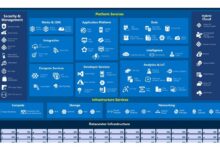
The Azure portal is Microsoft’s web-based platform for managing cloud services, resources, and subscriptions. Whether you’re deploying virtual machines, monitoring applications, or configuring security policies, the Azure portal serves as the central hub for all your cloud operations. It’s designed to be user-friendly while offering deep functionality for both beginners and experts.
Understanding the Core Purpose of Azure Portal
At its heart, the Azure portal exists to simplify cloud management. Instead of using command-line tools or scripts for every task, users can visually navigate, create, and manage resources across Microsoft Azure. This graphical interface reduces complexity and accelerates deployment cycles, making it ideal for teams adopting DevOps practices.
- Provides a unified dashboard for all Azure services
- Supports role-based access control (RBAC) for team collaboration
- Enables real-time monitoring and alerts through integrated tools
How Azure Portal Fits Into Cloud Ecosystems
The Azure portal isn’t just a management tool—it’s a gateway to a broader ecosystem. From AI and machine learning to IoT and hybrid cloud solutions, the portal integrates seamlessly with hundreds of services. For example, you can deploy an AI model using Azure Machine Learning Studio directly from the portal interface.
According to Microsoft’s official documentation, over 95% of Fortune 500 companies use Azure in some capacity, and the portal is often their primary point of interaction (Microsoft Learn).
The Azure portal transforms complex infrastructure tasks into manageable workflows, empowering organizations to innovate faster.
Navigating the Azure Portal Interface Like a Pro
Once you log in, the Azure portal greets you with a customizable dashboard. Understanding its layout is crucial for efficient navigation. The left-hand navigation pane, top search bar, and resource groups form the backbone of daily operations.
Key Components of the Dashboard
The dashboard is more than just a homepage—it’s a personalized workspace. You can pin frequently used resources, charts, and monitoring widgets. For instance, a DevOps engineer might pin CPU usage graphs for critical VMs, while a billing manager could track cost trends.
- Custom tiles for quick access to services
- Drag-and-drop layout customization
- Real-time performance metrics display
Using the Search Bar and Resource Filtering
One of the most underutilized yet powerful features is the global search bar at the top. Type any service name—like “Virtual Machines” or “Storage Accounts”—and the portal instantly locates it. You can also filter resources by subscription, region, or tag, which is invaluable in large-scale environments.
For advanced filtering, use the Resource Graph Explorer, which allows SQL-like queries to discover resources across subscriptions. This feature is especially useful for compliance audits or cost optimization reviews.
Managing Subscriptions and Access Control
Before deploying resources, you must understand how subscriptions and access are managed within the Azure portal. These settings define who can do what, ensuring security and accountability across your cloud environment.
Understanding Azure Subscriptions and Tenants
An Azure subscription is a logical container for resources tied to a billing account. Each subscription belongs to an Azure Active Directory (Azure AD) tenant, which manages identities and permissions. Organizations often use multiple subscriptions to separate environments—such as development, testing, and production—for better governance.
- Subscriptions can be organized under Management Groups for hierarchical control
- Each subscription has spending limits and service quotas
- Tenants provide identity and access management across all subscriptions
Implementing Role-Based Access Control (RBAC)
RBAC is the cornerstone of secure cloud management. Through the Azure portal, administrators can assign roles like Owner, Contributor, or Reader to users, groups, or applications. For example, a database administrator might have Contributor access to SQL databases but only Reader access to networking components.
You can also create custom roles for granular control. Suppose your company requires a “Cost Viewer” role that only allows access to billing data—this can be configured directly in the portal under Access Control (IAM).
Deploying and Managing Cloud Resources
One of the primary functions of the Azure portal is deploying and managing cloud resources. Whether it’s a virtual machine, a storage account, or a web app, the portal streamlines the entire lifecycle—from creation to deletion.
Creating Virtual Machines via the Portal
Deploying a virtual machine (VM) in the Azure portal takes just a few clicks. Navigate to Create a resource > Virtual Machine, then choose your OS, size, and region. The portal provides recommendations based on workload type, helping optimize cost and performance.
- Select from Windows, Linux, or specialized images (e.g., SAP-optimized)
- Configure networking, disks, and auto-shutdown policies during setup
- Enable monitoring and backup with one-click integrations
Microsoft reports that VM deployment time via the portal averages under 3 minutes for standard configurations (Azure Virtual Machines).
Managing Storage Accounts and Blob Services
Storage accounts are fundamental to Azure, used for blobs, files, queues, and tables. In the Azure portal, you can create a storage account in seconds and configure redundancy options like LRS (Locally Redundant Storage) or GRS (Geo-Redundant Storage).
Blob containers can be created directly from the portal interface, and you can upload files via drag-and-drop. Additionally, access policies and shared access signatures (SAS) can be managed visually, reducing the risk of misconfiguration.
Monitoring Performance with Azure Monitor
Ensuring your cloud resources perform optimally is critical. The Azure portal integrates Azure Monitor, a comprehensive tool for collecting, analyzing, and acting on telemetry data from both Azure and on-premises environments.
Setting Up Metrics and Alerts
Azure Monitor allows you to track metrics like CPU usage, memory consumption, and network latency. You can set up alerts that notify teams via email, SMS, or webhook when thresholds are breached.
- Create alert rules based on metric thresholds or log queries
- Integrate with Azure Action Groups for multi-channel notifications
- Use dynamic thresholds for intelligent anomaly detection
Using Log Analytics and Querying Data
Log Analytics, part of Azure Monitor, enables deep troubleshooting through Kusto Query Language (KQL). From the Azure portal, you can open the Logs workspace and run queries to analyze application logs, security events, or infrastructure performance.
For example, to find failed login attempts across all VMs, you could run:
Kusto Query:
SecurityEvent | where EventID == 4625 | project TimeGenerated, Account, IP = tostring(IpAddress)
This level of insight is invaluable for security operations teams.
Securing Your Environment Through the Azure Portal
Security is not an afterthought in cloud computing—it’s built into every layer. The Azure portal provides robust tools to protect your data, applications, and infrastructure.
Configuring Azure Security Center (Now Part of Microsoft Defender)
Microsoft Defender for Cloud (formerly Azure Security Center) offers unified security management and advanced threat protection. Accessible directly from the Azure portal, it continuously assesses your resources for vulnerabilities and provides actionable recommendations.
- Identifies unencrypted databases, open firewall ports, and outdated software
- Offers just-in-time VM access to minimize exposure
- Provides security scores to measure compliance posture
Managing Identity and Access with Azure AD
Azure Active Directory (Azure AD) is integrated into the portal, allowing administrators to manage users, groups, and application access. Features like Multi-Factor Authentication (MFA), Conditional Access, and Identity Protection help prevent unauthorized access.
For example, you can enforce MFA for all users accessing the Azure portal from outside the corporate network using Conditional Access policies.
Optimizing Costs and Budgeting in Azure Portal
Cloud spending can spiral out of control without proper oversight. The Azure portal includes powerful cost management tools that help organizations track, analyze, and optimize their cloud expenditures.
Using the Cost Management + Billing Dashboard
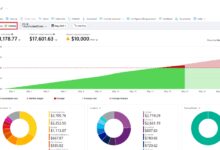
This dashboard provides a clear view of current and forecasted costs. You can break down spending by resource, service, department, or tag. Visual charts show trends over time, helping finance teams align usage with budgets.
- Create budgets with alert thresholds (e.g., notify when 80% of budget is consumed)
- Analyze reserved instance recommendations to save up to 72% on VM costs
- Export cost data to CSV or integrate with Power BI for advanced reporting
Identifying and Eliminating Waste
A common issue in cloud environments is idle or underutilized resources. The Azure portal’s Cost Analysis tool highlights VMs running 24/7 with low CPU usage, suggesting rightsizing or shutdown schedules.
You can also use Advisor Recommendations to find savings opportunities. For instance, Advisor might suggest switching from pay-as-you-go to reserved instances for a consistently used database.
Automating Tasks with Azure Portal Tools
While the Azure portal is known for its graphical interface, it also supports automation to reduce manual effort and increase consistency.
Using Azure Automation and Runbooks
Azure Automation allows you to automate repetitive tasks using runbooks—scripts written in PowerShell or Python. From the portal, you can create, schedule, and monitor runbooks that perform actions like starting/stopping VMs or applying security patches.
- Schedule nightly shutdowns for non-production VMs to save costs
- Automate user provisioning based on HR system triggers
- Integrate with Logic Apps for workflow orchestration
Exporting Templates for Repeatable Deployments
Every resource created in the Azure portal can generate an ARM (Azure Resource Manager) template. This JSON-based template captures the configuration and can be reused for consistent deployments across environments.
For example, after setting up a secure web app with a database and firewall rules, you can export the template and deploy the same stack in another region with minimal effort.
Integrating Third-Party Tools and APIs
The Azure portal isn’t a siloed system—it’s designed to integrate with external tools and services, enhancing its functionality.
Connecting with DevOps and CI/CD Pipelines
You can link the Azure portal to Azure DevOps, GitHub Actions, or Jenkins to automate deployments. For instance, a code commit can trigger a pipeline that deploys a new version of a web app directly to Azure App Service, all monitored through the portal.
- Use deployment centers in App Services to connect repositories
- Monitor pipeline status and logs from within the portal
- Enable staging slots for zero-downtime deployments
Using Azure API Management via the Portal
Azure API Management (APIM) allows you to publish, secure, and analyze APIs. Through the Azure portal, you can create API gateways, set rate limits, and view usage analytics. This is especially useful for organizations exposing backend services to partners or mobile apps.
APIM integrates with Azure AD for authentication and supports OpenAPI specifications for easy onboarding.
Best Practices for Efficient Azure Portal Usage
To get the most out of the Azure portal, follow proven best practices that enhance security, efficiency, and scalability.
Organize Resources with Tags and Resource Groups
Use tags to categorize resources by project, owner, environment, or cost center. This makes filtering, reporting, and automation much easier. For example, tagging all production resources with env=prod allows you to quickly identify them during audits.
- Apply consistent naming conventions across resources
- Use resource groups to group related components (e.g., web, app, database tiers)
- Set up auto-delete policies for test environments using tags
Leverage Azure Advisor for Continuous Optimization
Azure Advisor is your personalized cloud consultant. It analyzes your usage patterns and provides recommendations in five categories: cost, performance, security, reliability, and operational excellence.
Regularly review Advisor suggestions—many lead to significant improvements. For example, enabling soft delete for storage accounts can prevent accidental data loss.
What is the Azure portal?
The Azure portal is a web-based console provided by Microsoft for managing Azure cloud services and resources. It offers a graphical interface to deploy, monitor, and manage everything from virtual machines to AI models.
How do I access the Azure portal?
You can access the Azure portal by visiting portal.azure.com and signing in with your Microsoft account or organizational credentials. Multi-factor authentication is recommended for security.
Is the Azure portal free to use?
Yes, accessing the Azure portal itself is free. However, the cloud resources you create and manage through it (like VMs, storage, and databases) incur costs based on usage. You can use the Free Account tier to explore limited services at no cost.
Can I automate tasks in the Azure portal?
Absolutely. While the portal is GUI-driven, it supports automation through Azure Automation, Logic Apps, and ARM templates. You can also use the Azure CLI or PowerShell alongside the portal for scripting.
How secure is the Azure portal?
The Azure portal is built with enterprise-grade security, including encryption, role-based access control, and integration with Microsoft Defender for Cloud. Following security best practices like MFA and least-privilege access further enhances protection.
Mastering the Azure portal is essential for anyone working with Microsoft’s cloud platform. From deploying virtual machines to securing environments and optimizing costs, the portal offers a powerful, unified interface for managing complex cloud ecosystems. By leveraging its features—like monitoring, automation, and cost analysis—you can drive efficiency, security, and innovation across your organization. Whether you’re a beginner or an experienced cloud architect, continuous learning and best practice adoption will ensure you get the most out of this indispensable tool.
Further Reading: